Add a Snackbar
suggest changeOne of the main features in Material Design is the addition of a Snackbar, which in theory replaces the previous Toast. As per the Android documentation:
Snackbars contain a single line of text directly related to the operation performed. They may contain a text action, but no icons. Toasts are primarily used for system messaging. They also display at the bottom of the screen, but may not be swiped off-screen.
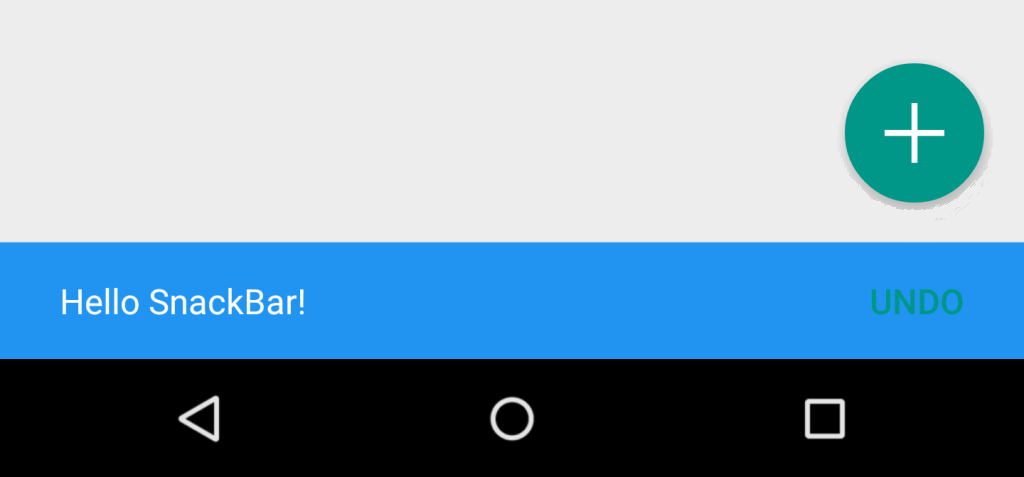
Toasts can still be used to display messages. If you follow Material Design, prefer a snackbar. Instead of floating as an overlay, a Snackbar slides up from the bottom.
Here is how it is done:
Snackbar snackbar = Snackbar
        .make(coordinatorLayout, "Here is your new Snackbar", Snackbar.LENGTH_LONG);
snackbar.show();
The display length has the same presets as a Toast, or you can set a custom duration in milliseconds:
LENGTH_SHORTLENGTH_LONGLENGTH_INDEFINITEsetDuration()(since version22.2.1)
You can also add dynamic features to your Snackbar such as ActionCallback or custom color. However do pay attention to the design guideline offered by Android when customising a Snackbar.
Snackbar.make() accepts any View. Pass a view inside a CoordinatorLayout when you want the snackbar to be swipeable and to move out of the way of components such as a FloatingActionButton.
This is how to define a CoordinatorLayout in your layout xml file:
<android.support.design.widget.CoordinatorLayout xmlns:android="http://schemas.android.com/apk/res/android"
    xmlns:tools="http://schemas.android.com/tools"
    android:id="@+id/coordinatorLayout"
    android:layout_width="match_parent"
    android:layout_height="match_parent"
    tools:context=".MainActivity">

    <!-- Other widgets in your layout go here. -->

</android.support.design.widget.CoordinatorLayout>
The CoordinatorLayout then needs to be defined in your Activity’s onCreate method, and then used when creating the Snackbar itself.
For more information about Snackbar, see the official documentation or the dedicated topic.