Connect ADB to a device via WiFi
suggest changeThe standard ADB configuration involves a USB connection to a physical device.
If you prefer, you can switch over to TCP/IP mode, and connect ADB via WiFi instead.
Not rooted device
- Use the same network. The device and the computer must be on the same Wi-Fi network.
- Connect the device to the host computer with a USB cable.
- Point
adbat the device over the network.
While your device is connected to adb via USB, do the following command to listen for a TCP/IP connection on a port (default 5555):
- Type
adb tcpip <port>(switch to TCP/IP mode). - Disconnect the USB cable from the target device.
- Type
adb connect <ip address>:<port>(port is optional; default 5555).
For example:
adb tcpip 5555
adb connect 192.168.0.101:5555
If you do not know the device IP:
- Read it in the device Wi-Fi settings.
- Or, while USB debugging is connected, run
adb shell ip -f inet addr show wlan0. Many devices no longer includeifconfig. Theinetaddress onwlan0is the one to pass toadb connect.
To revert back to debugging via USB use the following command:
adb usb
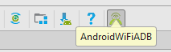
You can also connect ADB via WiFi by installing a plugin to Android Studio. In order to do so, go to Settings > Plugins and Browse repositories, search for ADB WiFi, install it, and reopen Android Studio. You will see a new icon in your toolbar as shown in the following image. Connect the device to the host computer via USB and click on this AndroidWiFiADB icon. It will display a message whether your device is connected or not. Once it gets connected you can unplug your USB.
Rooted device
Note: Some devices which are rooted can use the ADB WiFi App from the Play Store to enable this in a simple way. Also, for certain devices (especially those with CyanogenMod ROMs) this option is present in the Developer Options among the Settings. Enabling it will give you the IP address and port number required to connect to adb by simply executing adb connect <ip address>:<port>.
When you have a rooted device but don’t have access to a USB cable
The process is explained in detail in the following answer: http://stackoverflow.com/questions/2604727/how-can-i-connect-to-android-with-adb-over-tcp/3623727#3623727 The most important commands are shown below.
Open a terminal in the device and type the following:
su
setprop service.adb.tcp.port <a tcp port number>
stop adbd
start adbd
For example:
setprop service.adb.tcp.port 5555
And on your computer:
adb connect <ip address>:<a tcp port number>
For example:
adb connect 192.168.1.2:5555
To turn it off:
setprop service.adb.tcp.port -1
stop adbd
start adbd
Avoid timeout
By default adb will timeout after 5000 ms. This can happen in some cases such as slow WiFi or large APK.
A simple change in the Gradle configuration can do the trick:
android {
    adbOptions {
        timeOutInMs 10 * 1000
    }
}