Espresso simple UI test
suggest changeUI testing tools
Two main tools that are nowadays mostly used for UI testing are Appium and Espresso.
| Appium | Espresso |
|---|---|
| Black-box test | White-box or gray-box testing |
| What you see is what you can test | Can prepare the app before the test, for example by writing a database or SharedPreferences |
| Used mostly for end-to-end flows | Tests one screen or one flow |
| The same test can target iOS and Android | Android only |
| Well supported | Well supported |
| Parallel runs on many devices through Selenium Grid | No parallel runs in the core library. Spoon was a common plugin |
How to add espresso to the project
dependencies {
  // Set this dependency so you can use Android JUnit Runner
  androidTestCompile 'com.android.support.test:runner:0.5'
  // Set this dependency to use JUnit 4 rules
  androidTestCompile 'com.android.support.test:rules:0.5'
  // Set this dependency to build and run Espresso tests
  androidTestCompile 'com.android.support.test.espresso:espresso-core:2.2.2'
  // Set this dependency to build and run UI Automator tests
  androidTestCompile 'com.android.support.test.uiautomator:uiautomator-v18:2.2.2'
}
NOTE If you are using latest support libraries, annotations etc. you need to exclude the older versions from espresso to avoid collisions:
// there is a conflict with the test support library (see http://stackoverflow.com/questions/29857695)
// so exclude the support-annotations dependency here to avoid clashes
androidTestCompile('com.android.support.test.espresso:espresso-core:2.2.2') {
    exclude group: 'com.android.support', module: 'support-annotations'
    exclude module: 'support-annotations'
    exclude module: 'recyclerview-v7'
    exclude module: 'support-v4'
    exclude module: 'support-v7'
}
// exclude a couple of more modules here because of <http://stackoverflow.com/questions/29216327> and
// more specifically of <https://code.google.com/p/android-test-kit/issues/detail?id=139>
// otherwise you'll receive weird crashes on devices and dex exceptions on emulators
// Espresso-contrib for DatePicker, RecyclerView, Drawer actions, Accessibility checks, CountingIdlingResource
androidTestCompile('com.android.support.test.espresso:espresso-contrib:2.2.2') {
    exclude group: 'com.android.support', module: 'support-annotations'
    exclude group: 'com.android.support', module: 'design'
    exclude module: 'support-annotations'
    exclude module: 'recyclerview-v7'
    exclude module: 'support-v4'
    exclude module: 'support-v7'
}
//excluded specific packages due to https://code.google.com/p/android/issues/detail?id=183454
androidTestCompile('com.android.support.test.espresso:espresso-intents:2.2.2') {
    exclude group: 'com.android.support', module: 'support-annotations'
    exclude module: 'support-annotations'
    exclude module: 'recyclerview-v7'
    exclude module: 'support-v4'
    exclude module: 'support-v7'
}

androidTestCompile('com.android.support.test.espresso:espresso-web:2.2.2') {
    exclude group: 'com.android.support', module: 'support-annotations'
    exclude module: 'support-annotations'
    exclude module: 'recyclerview-v7'
    exclude module: 'support-v4'
    exclude module: 'support-v7'
}

androidTestCompile('com.android.support.test:runner:0.5') {
    exclude group: 'com.android.support', module: 'support-annotations'
    exclude module: 'support-annotations'
    exclude module: 'recyclerview-v7'
    exclude module: 'support-v4'
    exclude module: 'support-v7'
}
androidTestCompile('com.android.support.test:rules:0.5') {
    exclude group: 'com.android.support', module: 'support-annotations'
    exclude module: 'support-annotations'
    exclude module: 'recyclerview-v7'
    exclude module: 'support-v4'
    exclude module: 'support-v7'
}
Also set the instrumentation runner in android.defaultConfig:
testInstrumentationRunner "android.support.test.runner.AndroidJUnitRunner"
Device setup
For a less flaky test, use these device settings:
- Developer options / Disable animations. This reduces flakiness.
- Developer options / Stay awake. This is useful when a device is dedicated to tests.
- Developer options / Logger buffer sizes - set to higher number if you run very big test suites on your phone
- Accessibility / Touch & Hold delay - long to avoid problems with tapping in espresso
With the device settings in place, here is a small test.
Writing the test
Assume the screen below. It contains:
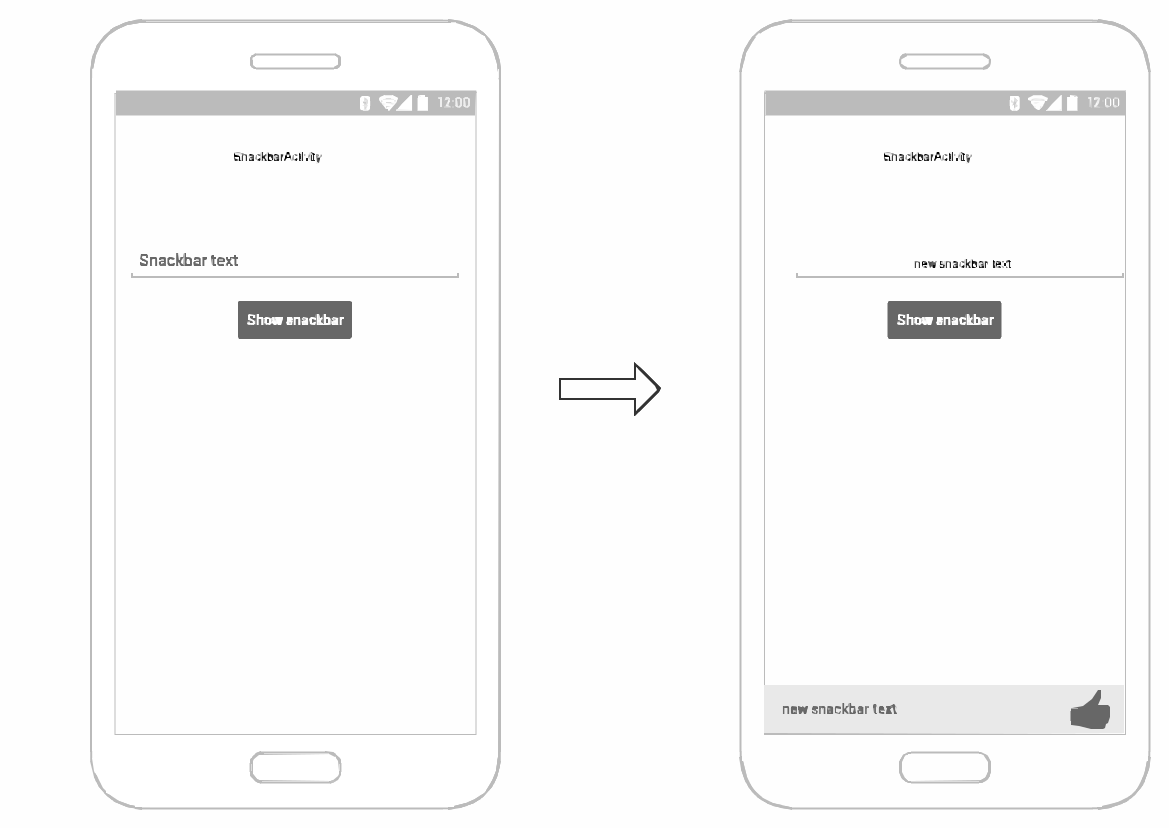
- text input field - R.id.textEntry
- button which shows snackbar with typed text when clicked - R.id.shownSnackbarBtn
- snackbar which should contain user typed text - android.support.design.R.id.snackbar_text
Now lets create a class that will test our flow:
/**
* Testing of the snackbar activity.
**/
@RunWith(AndroidJUnit4.class)
@LargeTest
public class SnackbarActivityTest{
    //espresso rule which tells which activity to start
    @Rule
    public final ActivityTestRule<SnackbarActivity> mActivityRule =
        new ActivityTestRule<>(SnackbarActivity.class, true, false);
@After
public void tearDown() {
    // Example of cleaning application state after a test.
    mDatabase.clear();
    mSharedPrefs.clear();
}

@Before
public void setUp() {
    // Example of preparing application state. AndroidJUnit4 uses @Before and @After.
    User mUser = new User();
    mUser.setToken("randomToken");
}

/**
*Test methods should always start with "testXYZ" and it is a good idea to
*name them after the intent what you want to test
**/
@Test
public void testSnackbarIsShown() {
    //start our activity
    mActivityRule.launchActivity(null);
    // Check that the text field is displayed, then type into it.
    String textToType="new snackbar text";
    onView(withId(R.id.textEntry)).check(matches(isDisplayed()));
    onView(withId(R.id.textEntry)).perform(typeText(textToType));
    //click the button to show the snackbar
    onView(withId(R.id.shownSnackbarBtn)).perform(click());
    //assert that a view with snackbar_id with text which we typed and is displayed
    onView(allOf(withId(android.support.design.R.id.snackbar_text),
    withText(textToType))) .check(matches(isDisplayed()));
}
}
Three calls show up often:
onView(withXYZ) <– viewMatchers with them you are able to find elements on screen
perform(click()) <– viewActions, you can execute actions on elements you previously found
check(matches(isDisplayed())) <– viewAssertions, checks you want to do on screens you previously found
All of these and many others can be found here: https://google.github.io/android-testing-support-library/docs/espresso/cheatsheet/index.html
Run the test from the class or test name, or with Gradle. With no product flavor, the task is connectedDebugAndroidTest. A flavor inserts its name, as in connectedFreeDebugAndroidTest.
./gradlew connectedDebugAndroidTest