Integrate Google Drive in Android
suggest changeCreate a New Project on Google Developer Console
To integrate Android application with Google Drive, create the credentials of project in the Google Developers Console. So, we need to create a project on Google Developer console.
To create a project on Google Developer Console, follow these steps:
-
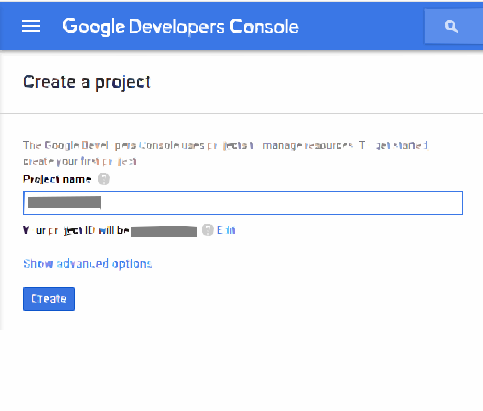
Go to Google Developer Console for Android. Fill your project name in the input field and click on the create button to create a new project on Google Developer console.
-
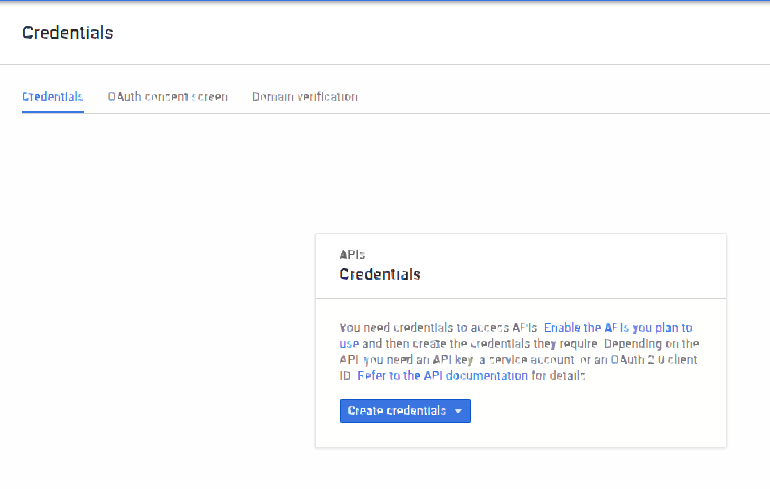
We need to create credentials to access API. So, click on the Create credentials button.
-
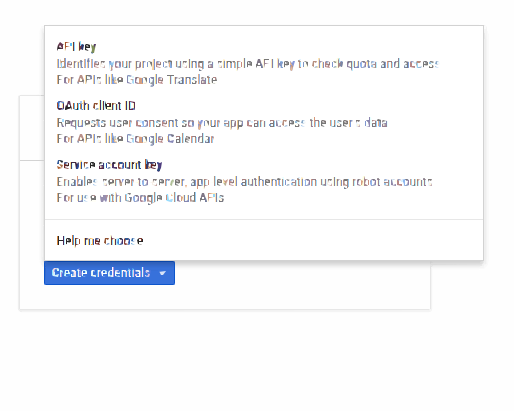
Now, a popup window will open. Click on API Key option in the list to create an API key.
-
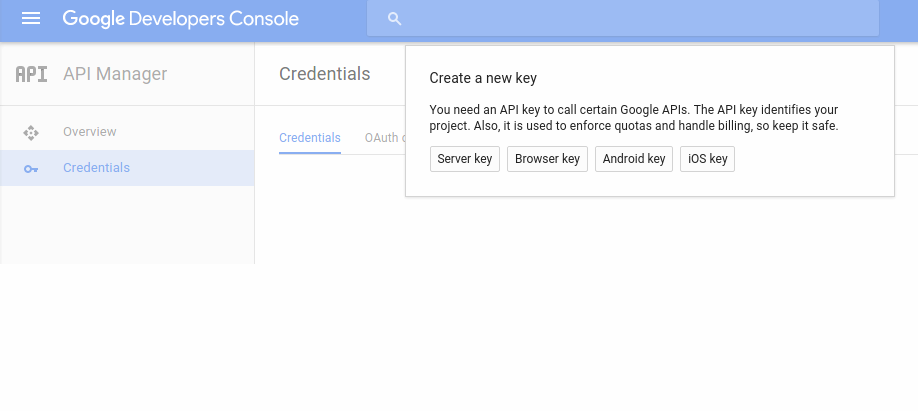
We need an API key to call Google APIs for Android. So, click on the Android Key to identify your Android Project.
-
Next, we need to add Package Name of the Android Project and SHA-1 fingerprint in the input fields to create API key.
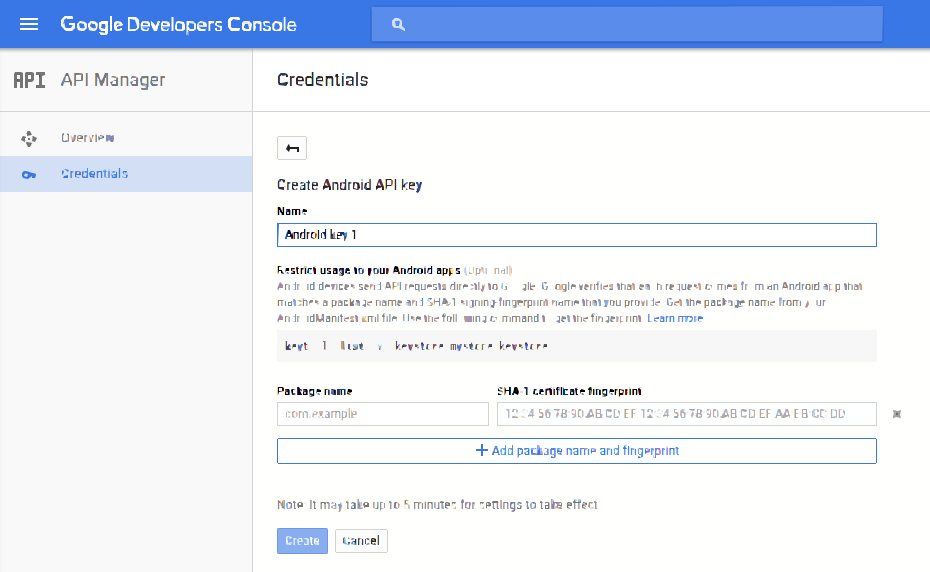
-
We need to generate SHA-1 fingerprint. So, open your terminal and run Keytool utility to get the SHA1 fingerprint. While running Keytool utility, you need to provide keystore password. Default development keytool password is “android”.
keytool -exportcert -alias androiddebugkey -keystore ~/.android/debug.keystore -list -v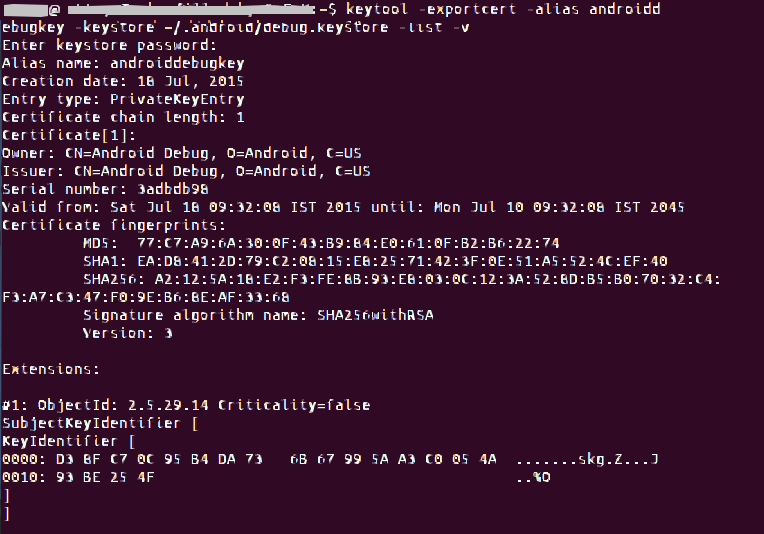
-
Now, add Package name and SHA-1 fingerprint in input fields on credentials page. Finally, click on create button to create API key.
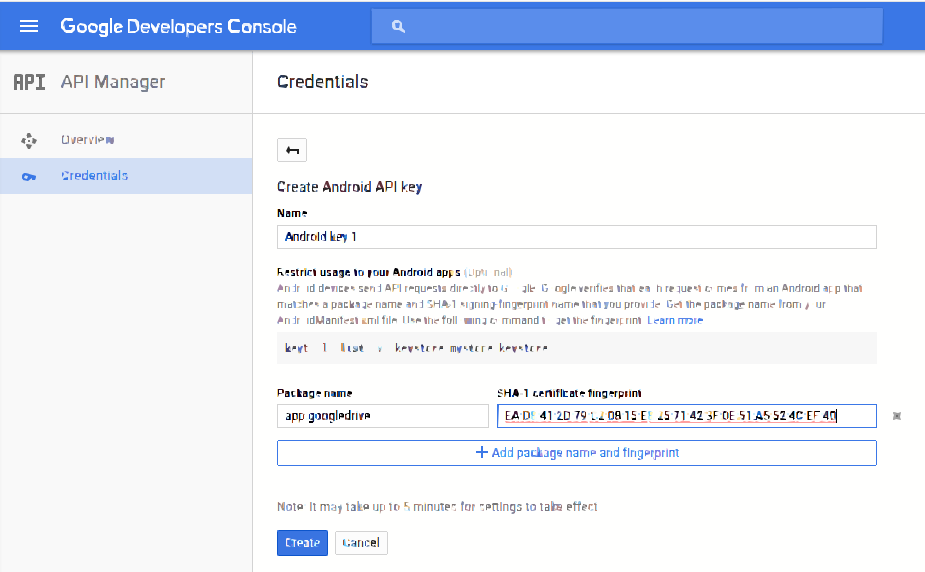
-
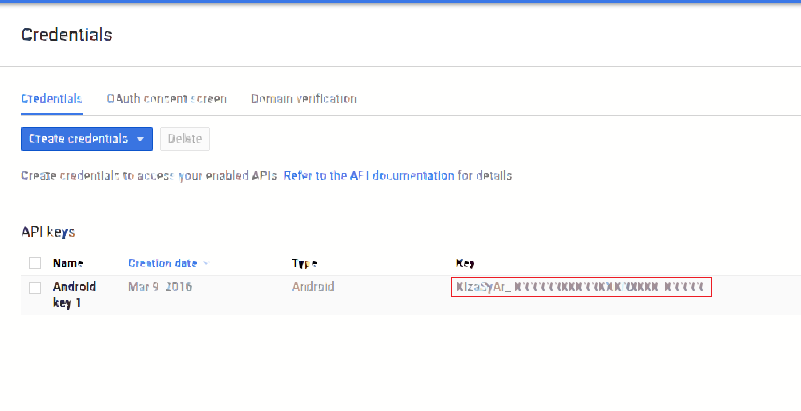
This will create an API key for Android. We will use this API key to integrate an Android application with Google Drive.
Enable Google Drive API
We need to enable the Google Drive API to access files stored on Google Drive from an Android application. To enable Google Drive API, follow below steps:
-
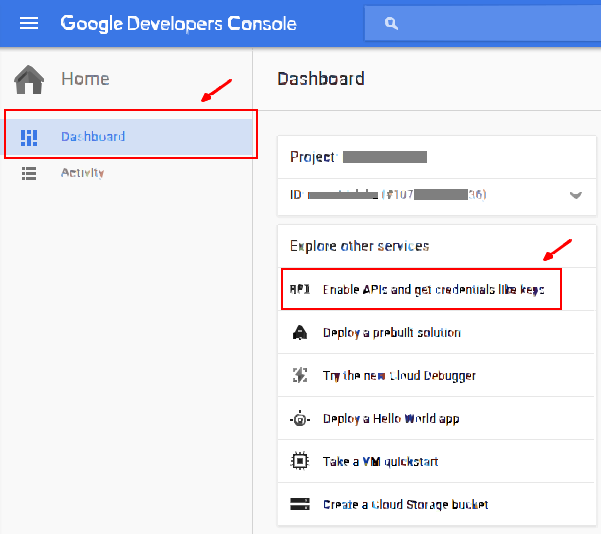
Go to your Google Developer console Dashboard and click on Enable APIs get credentials like keys then you will see popular Google APIs.
-
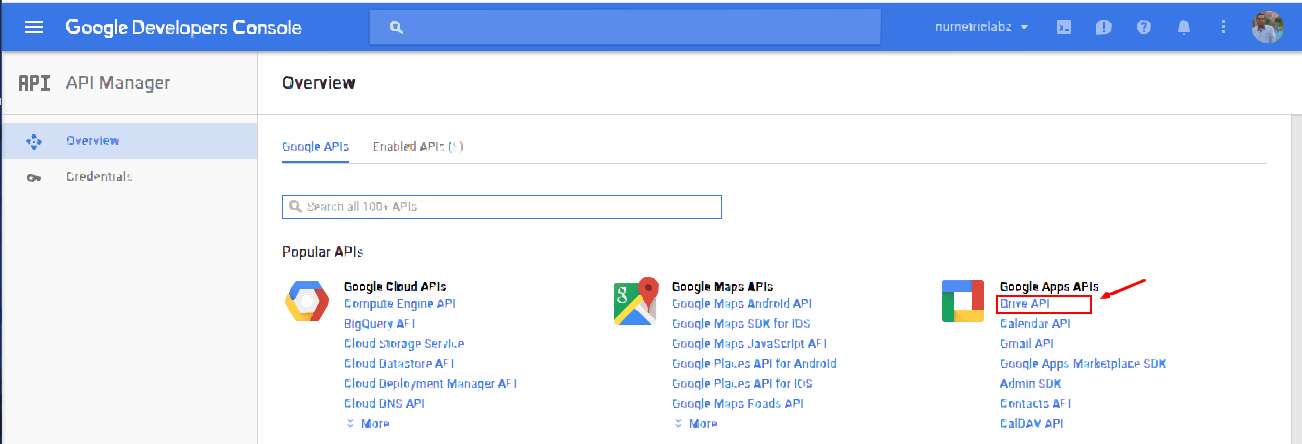
Click on Drive API link to open overview page of Google Drive API.
-
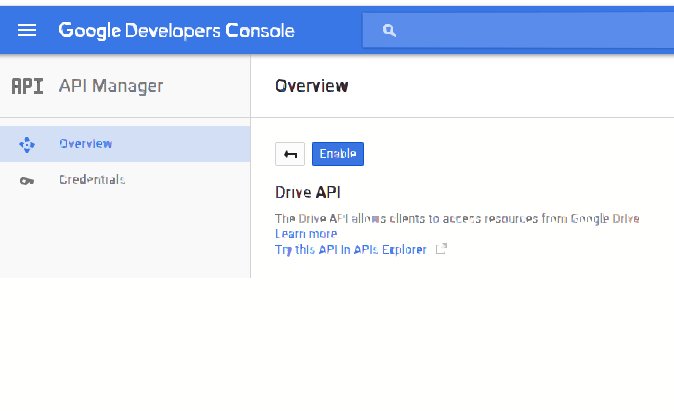
Click on the Enable button to enable Google drive API. It allows client access to Google Drive.
Add Internet Permission
The app needs the Internet permission to access Google Drive files. Use the following code to set up that permission in the AndroidManifest.xml file:
<uses-permission android:name="android.permission.INTERNET" />
Add Google Play Services
We will use Google play services API which includes the Google Drive Android API. So, we need to setup Google play services SDK in Android Application. Open your build.gradle(app module) file and add Google play services SDK as a dependencies.
dependencies {
  ....
    compile 'com.google.android.gms:play-services:<latest_version>'
  ....
}
Add API key in Manifest file
To use Google APIs in an Android application, add the API key and the Google Play services version as metadata inside the <application> tag of AndroidManifest.xml. Those metadata elements are not shown on this page.
Connect and Authorize the Google Drive Android API
We need to authenticate and connect Google Drive Android API with Android application. Authorization of Google Drive Android API is handled by the GoogleApiClient. We will use GoogleApiClient within onResume() method.
/**
 * Called when the activity will start interacting with the user.
 * At this point your activity is at the top of the activity stack,
 * with user input going to it.
 */
@Override
protected void onResume() {
   super.onResume();
   if (mGoogleApiClient == null) {

       /**
        * Create the API client and bind it to an instance variable.
        * We use this instance as the callback for connection and connection failures.
        * Since no account name is passed, the user is prompted to choose.
        */
         mGoogleApiClient = new GoogleApiClient.Builder(this)
                 .addApi(Drive.API)
                 .addScope(Drive.SCOPE_FILE)
                 .addConnectionCallbacks(this)
                 .addOnConnectionFailedListener(this)
                 .build();
        }

        mGoogleApiClient.connect();
    }
Disconnect Google Drive Android API
When the activity stops, disconnect the Google Drive Android API connection by calling disconnect() inside the activity’s onStop() method. onStop() should not call onPause().
@Override
protected void onStop() {
    super.onStop();
    if (mGoogleApiClient != null) {

         // disconnect Google Android Drive API connection.
         mGoogleApiClient.disconnect();
    }
}
Implement Connection Callbacks and Connection Failed Listener
We will implement Connection Callbacks and Connection Failed Listener of Google API client in MainActivity.java file to know status about connection of Google API client. These listeners provide onConnected(), onConnectionFailed(), onConnectionSuspended() method to handle the connection issues between app and Drive.
If user has authorized the application, the onConnected() method is invoked. If user has not authorized application, onConnectionFailed() method is invoked and a dialog is displayed to user that your app is not authorized to access Google Drive. In case connection is suspended, onConnectionSuspended() method is called.
You need to implement ConnectionCallbacks and OnConnectionFailedListener in your activity. Use the following code in your Java file.
@Override
    public void onConnectionFailed(ConnectionResult result) {

        // Called whenever the API client fails to connect.
        Log.i(TAG, "GoogleApiClient connection failed:" + result.toString());

        if (!result.hasResolution()) {

            // show the localized error dialog.
            GoogleApiAvailability.getInstance().getErrorDialog(this, result.getErrorCode(), 0).show();
            return;
        }

        /**
         *  The failure has a resolution. Resolve it.
         *  Called typically when the app is not yet authorized, and an  authorization
         *  dialog is displayed to the user.
         */

        try {

            result.startResolutionForResult(this, REQUEST_CODE_RESOLUTION);

        } catch (SendIntentException e) {

            Log.e(TAG, "Exception while starting resolution activity", e);
        }
    }

   /**
    * Invoked when the Google API client is connected
    * @param connectionHint
    */
    @Override
    public void onConnected(Bundle connectionHint) {

        Toast.makeText(getApplicationContext(), "Connected", Toast.LENGTH_LONG).show();
    }

   /**
    * Invoked when the connection is suspended
    * @param cause
    */
    @Override
    public void onConnectionSuspended(int cause) {

        Log.i(TAG, "GoogleApiClient connection suspended");
    }