App Icon using Image Assets
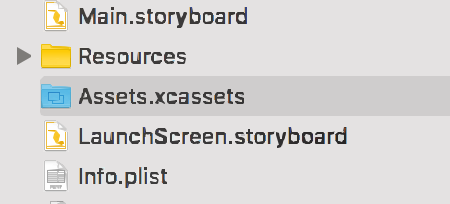
suggest changeWhenever we create a new project in Xcode for our new app, it gives us various built-in classes, targets, tests, a plist file, and so on. It also gives us an Assets.xcassets catalog, which manages the image assets in the project.
This is how this file looks like in file navigator:
If we click it, it’ll look like this:
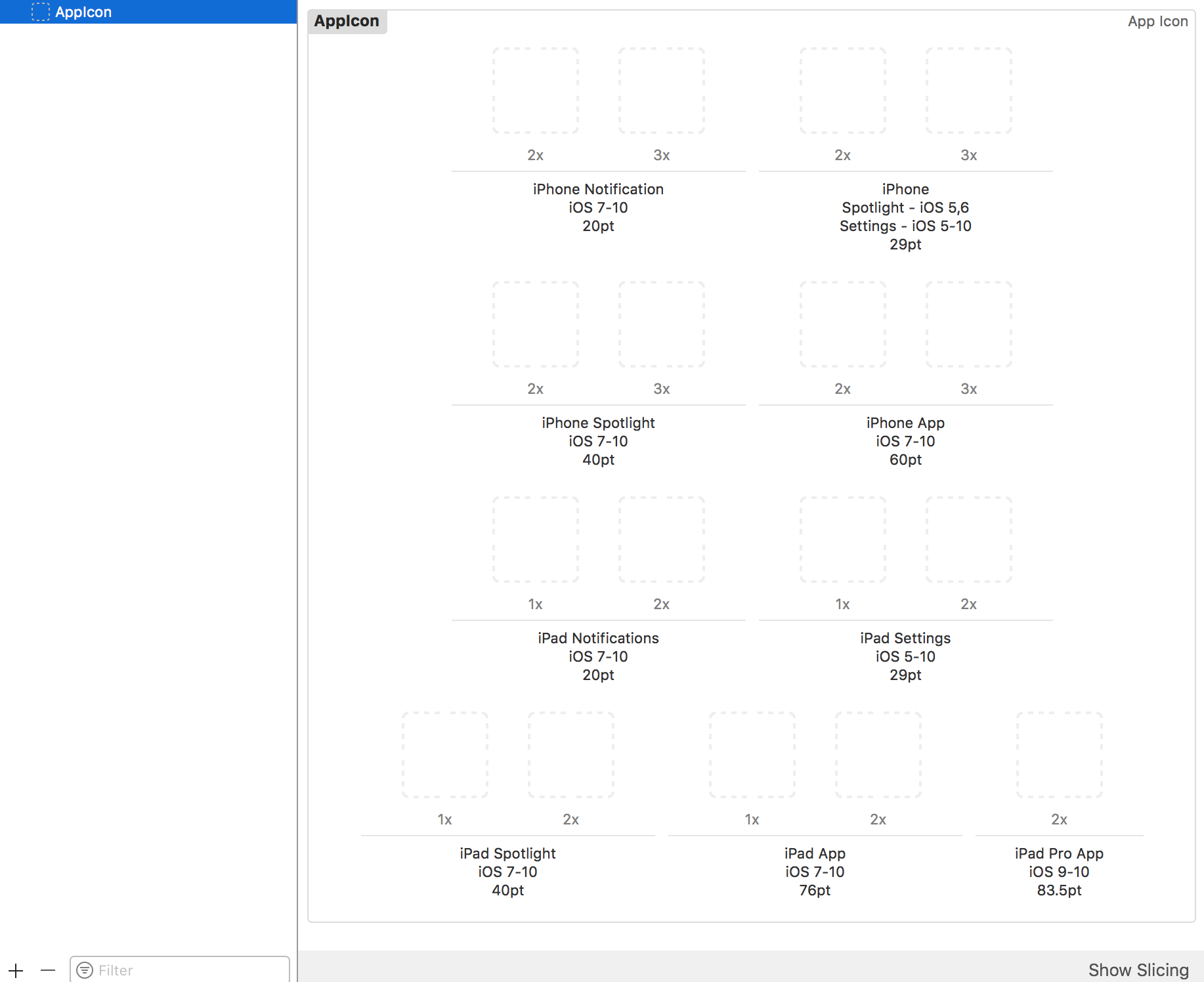
As I said, AppIcon asset is already created for us.
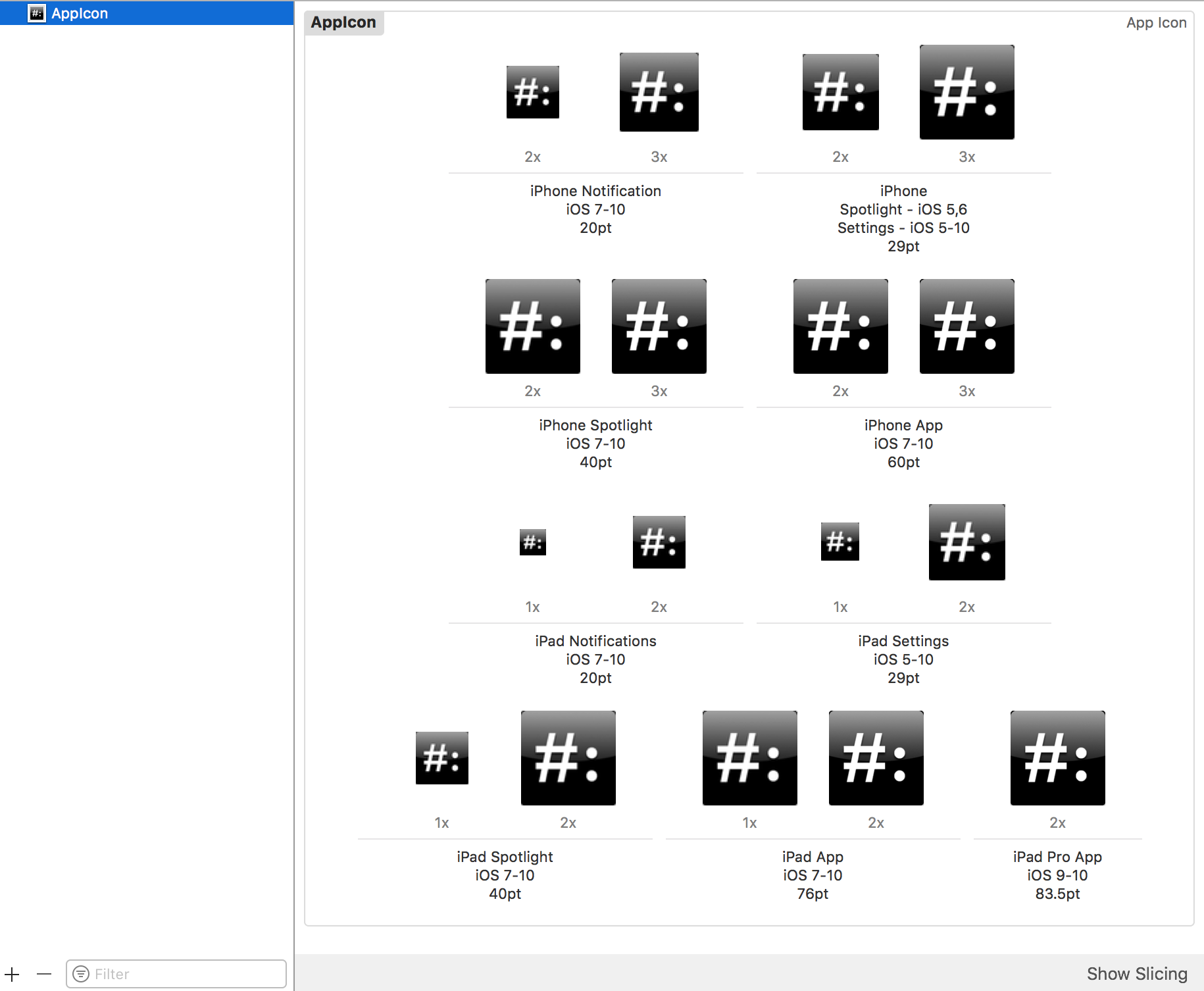
We just have to drag and drop the respective image onto each empty square. Each blank says which size that image should be; the size is written just below it.
After dragging and dropping all the images in all the squares, it’ll look like this:
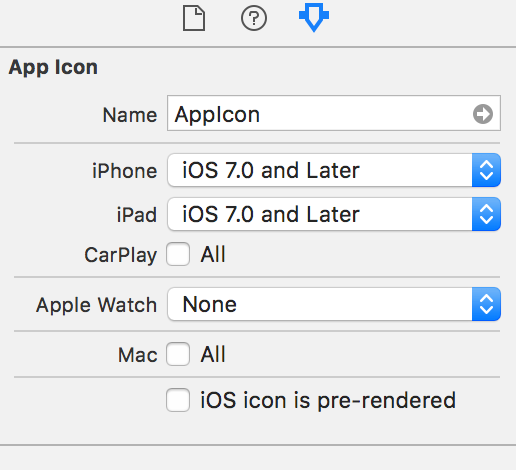
We can change the devices setting also for icon assets in Utilities -> Attributes Inspector as:
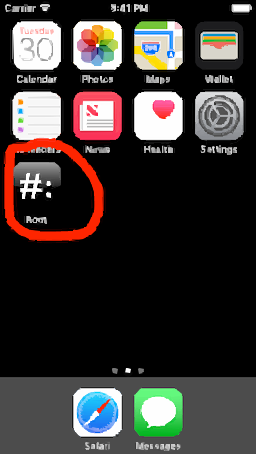
Once that is done, run the app and the icon appears on the Home screen:
It is set by default, but if it is not, check this setting under the target’s General tab:
