Clickable Label
suggest changeNOTE: In most cases, use a
UIButtoninstead of a tappableUILabel. Use this example only when a button will not do.
- Create label
- Enable user interaction
- Add
UITapGestureRecognizer
The key to creating a clickable UILabel is to enable user interaction. labelClicked(_:) must be an @objc method on self (Swift), or a method visible to @selector(labelClicked:) (Objective-C).
Swift
let label = UILabel()
label.userInteractionEnabled = true

let gesture = UITapGestureRecognizer(target: self, action: #selector(labelClicked(_:)))
label.addGestureRecognizer(gesture)
Objective-C
UILabel *label = [[UILabel alloc] init];
[label setUserInteractionEnabled:YES];

UITapGestureRecognizer* gesture = [[UITapGestureRecognizer alloc] initWithTarget:self action:@selector(labelClicked:)];
[label addGestureRecognizer:gesture];
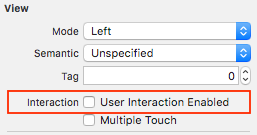
Setting “userInteractionEnabled” in storyboard’s attributes inspector
Instead of using code, you can select the UILabel inside the storyboard and check the option:
Found a mistake? Have a question or improvement idea?
Let me know.
Table Of Contents