Create a UILabel
suggest changeWith a Frame
When you know the exact dimensions you want to set for your label, you can initialize a UILabel with a CGRect frame.
Swift
let frame = CGRect(x: 0, y: 0, width: 200, height: 21)
let label = UILabel(frame: frame)
view.addSubview(label)
Objective-C
CGRect frame = CGRectMake(0, 0, 200, 21);
UILabel *label = [[UILabel alloc] initWithFrame:frame];
[view addSubview:label];
With Auto Layout
You can add constraints on a UILabel when you want iOS to dynamically calculate its frame at runtime.
Swift
let label = UILabel()
label.backgroundColor = .red
label.translatesAutoresizingMaskIntoConstraints = false
view.addSubview(label)

NSLayoutConstraint.activate([
    // Stick the top of the label to the top of its superview.
    label.topAnchor.constraint(equalTo: view.topAnchor),
    // Leading edge follows the layout direction (left for left-to-right).
    label.leadingAnchor.constraint(equalTo: view.leadingAnchor),
    // Stick the label’s bottom to the bottom of its superview.
    label.bottomAnchor.constraint(equalTo: view.bottomAnchor),
    // The label’s width should be 100 points.
    label.widthAnchor.constraint(equalToConstant: 100)
])
Objective-C
UILabel *label = [[UILabel alloc] init];
The anchor constraints above are the Swift form. The same edges can be expressed in Objective-C with the visual format language.
With Objective-C and the visual format language (VFL)
UILabel *label = [UILabel new];
label.translatesAutoresizingMaskIntoConstraints = NO;
[self.view addSubview:label];

// Vertical: 5 points of padding above and below the label.
[self.view addConstraints:[NSLayoutConstraint constraintsWithVisualFormat:@"V:|-5-[labelName]-5-|" options:0 metrics:nil views:@{@"labelName": label}]];
// Horizontal: pin the label to the leading and trailing edges of the superview.
[self.view addConstraints:[NSLayoutConstraint constraintsWithVisualFormat:@"H:|[labelName]|" options:0 metrics:nil views:@{@"labelName": label}]];
VFL documentation can be found here
After the label has been created, be sure to set the dimensions via Auto Layout. Xcode will display errors if it is done improperly.
With Interface Builder
You can also use Interface Builder to add a UILabel to a storyboard or .xib file. Drag a Label from the Object Library and drop it into a view on the canvas:
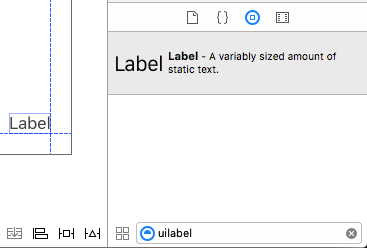
Instead of specifying a frame (position and size) for a UILabel programmatically, a Storyboard or a .xib lets you use Auto Layout to add constraints to the control.
In order to access this label created from storyboard or xib create an IBOutlet of this label.
Linking Between Interface Builder and View Controller
Once the UILabel is in a storyboard or .xib, connect it to your code. Hold Control and drag from the label to the view controller, or right-click and drag.
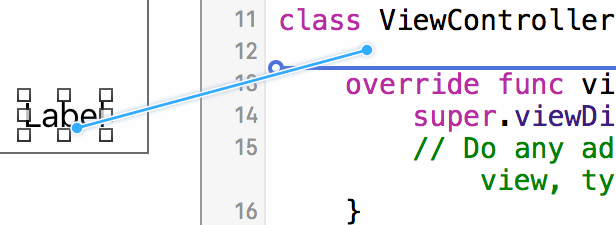
In the properties dialog, you can set the name of UILabel, and set it as strong or weak. For more information about strong and weak, see this,
The other way is to make the outlet programmatically as follows:
Swift
@IBOutlet weak var nameLabel : UILabel!
Objective-C
@property (nonatomic, weak) IBOutlet UILabel *nameLabel;