Exploring ModalPresentationStyle using Interface Builder
suggest changeThis will be a very basic app which will illustrate different ModalpresentationStyle in iOS. According to documentation found here, these are the UIModalPresentationStyle values this walkthrough uses. Later systems add further values, including automatic.
fullScreenpageSheetformSheetcurrentContextcustomoverFullScreenoverCurrentContextpopovernone
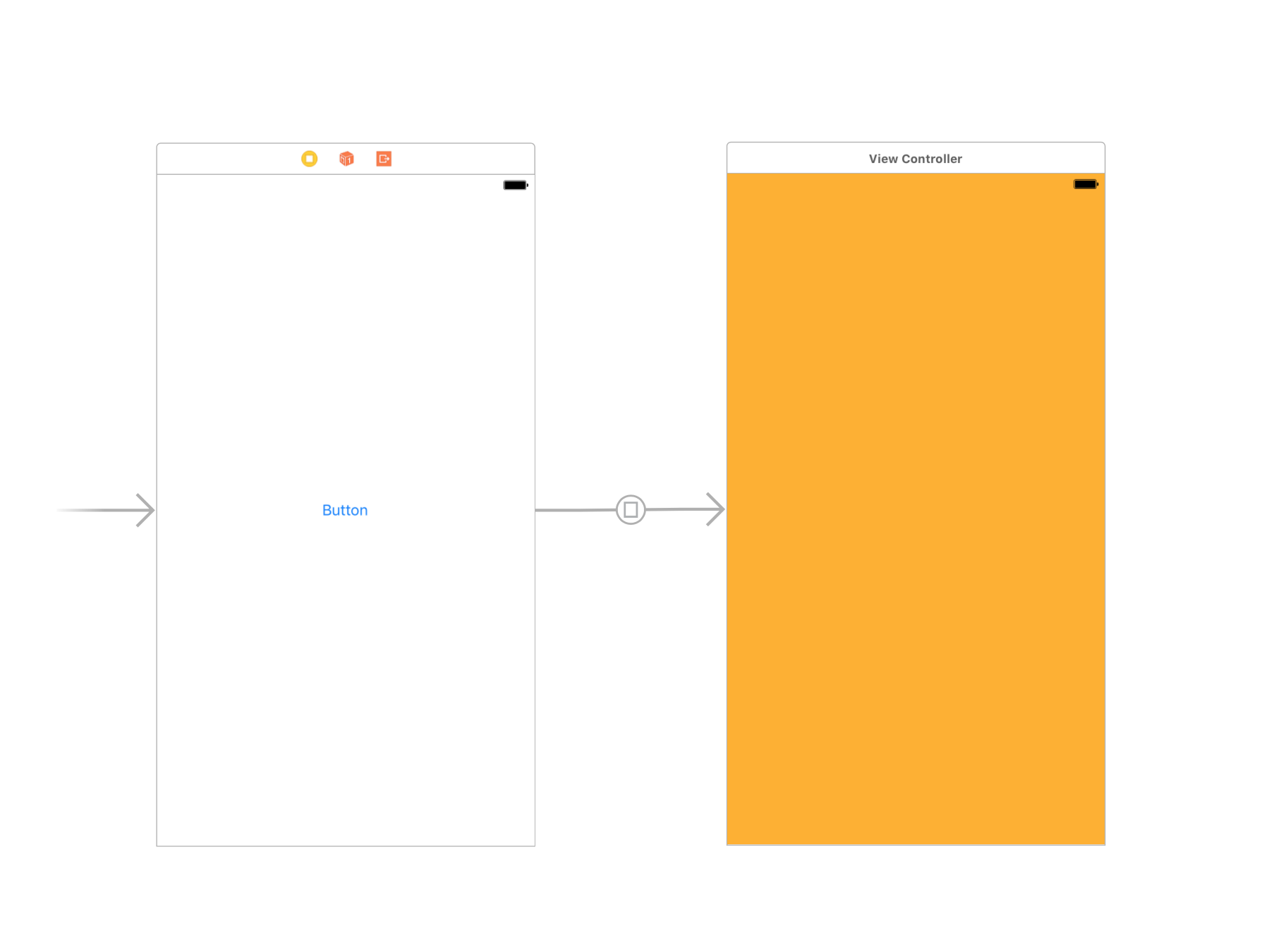
To set up a project, just create a normal iOS project and add 2 ViewControllers. Put a UIButton in your initial ViewController and connect it to the second ViewController with a Present Modally segue (control-drag in Interface Builder, not a target-action). To distinguish both ViewControllers, set the background property of the UIView in the second ViewController to some other color. If all goes well, your Interface Builder should look something like this,
Build this project and run it on an iPad. On a compact iPhone, pageSheet and formSheet historically covered the full screen, so the size differences below are easiest to see on iPad. Once you are done setting up your project, select the segue and go to the attributes inspector. You should be able to see something like this,
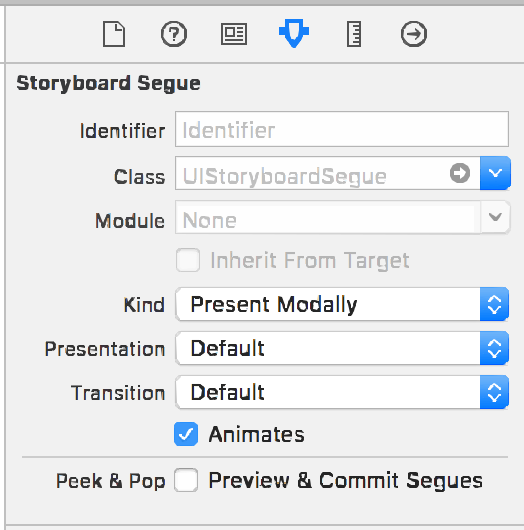
Set the kind property to Present Modally.
Now, we won’t see all of the effects in this example as some of them require a little bit of code.
Let’s start with fullScreen. This effect is selected by default when you select Present Modally in the Kind tab. When you build and run, the second ViewController occupies the full screen of your iPad.

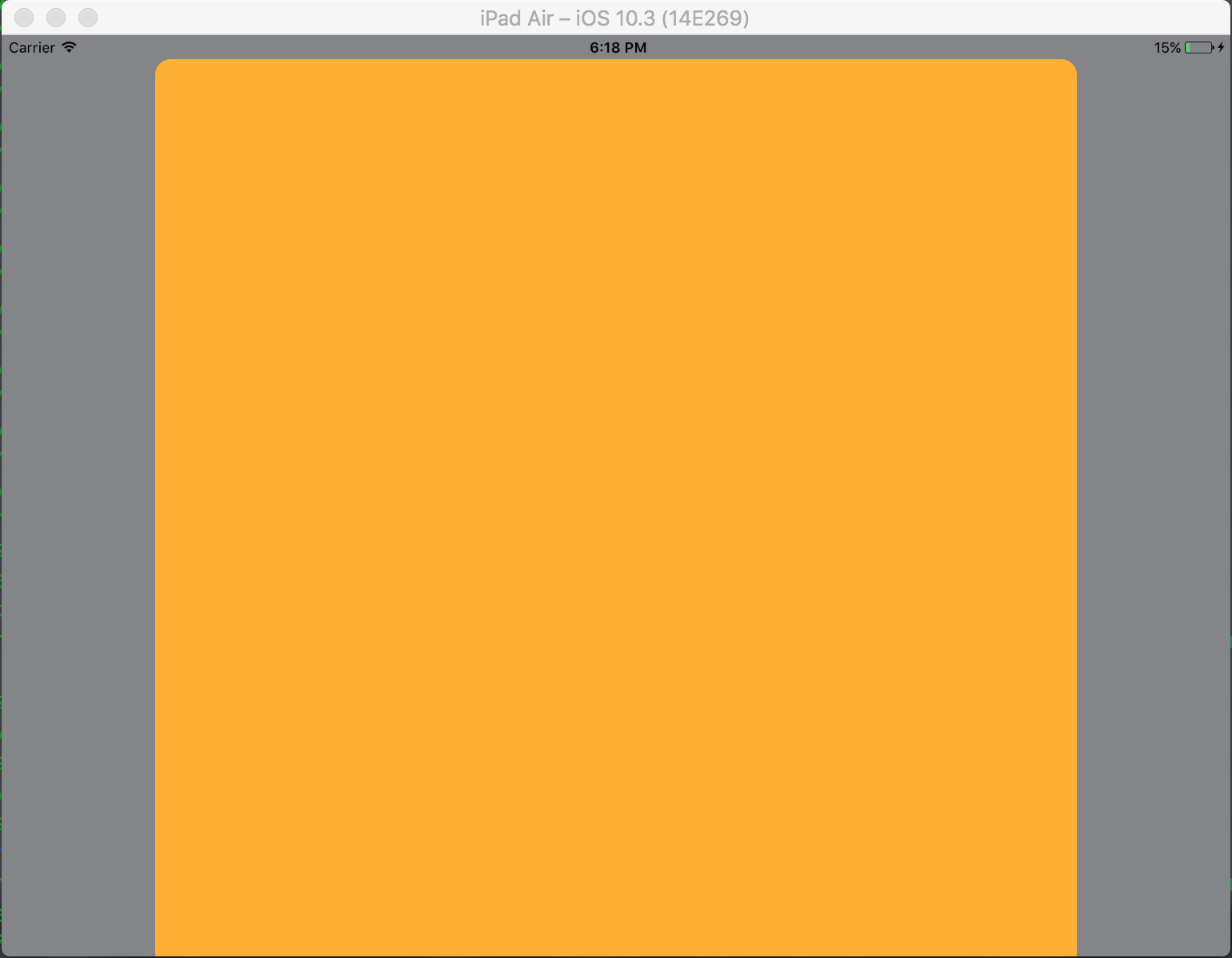
Next is pageSheet. You can select this option from the Presentation tab. In this option, when the device is in portrait mode, the second ViewController is similar to full screen, but in landscape mode the second ViewController is much narrower than the device width. Also, any content not covered by the second ViewController will be dimmed.
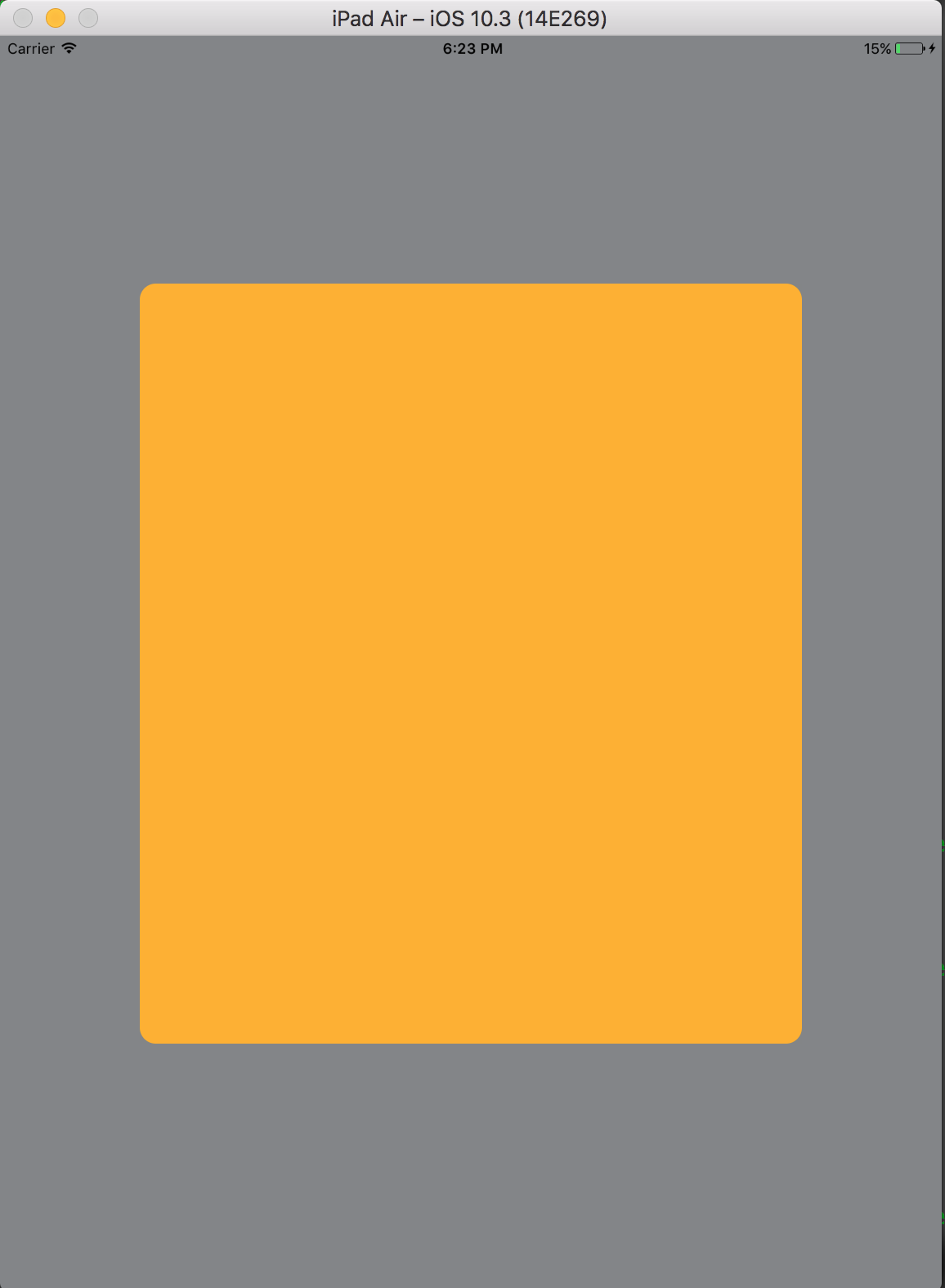
For the formSheet style, the second ViewController is placed in the center of the device and the size is smaller than that of the device. Also, when the device is in landscape mode and the keyboard is visible, the position of the view is adjusted upwards to show the ViewController.
The last style which we are going to try is popover. To select this style, select Present as Popover in the Kind tab. The second ViewController is presented as a small popover (size can be set). The background content is dimmed. Any tap outside the popover dismisses the popover. Your Attributes Inspector should look something like this,
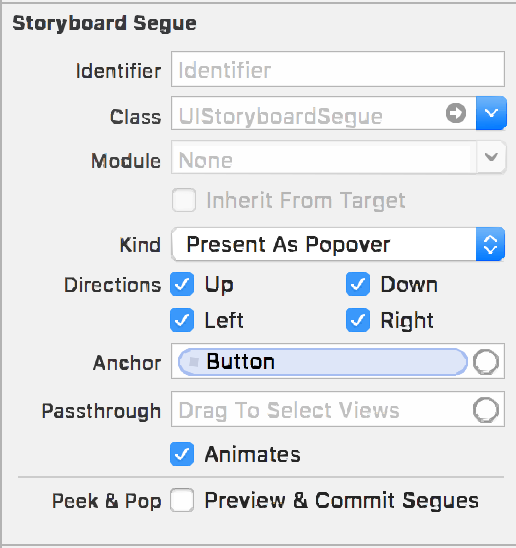
Anchor is the UI element to which you want your popover arrow to point. Directions are the directions you allow your popover Anchor to point in.
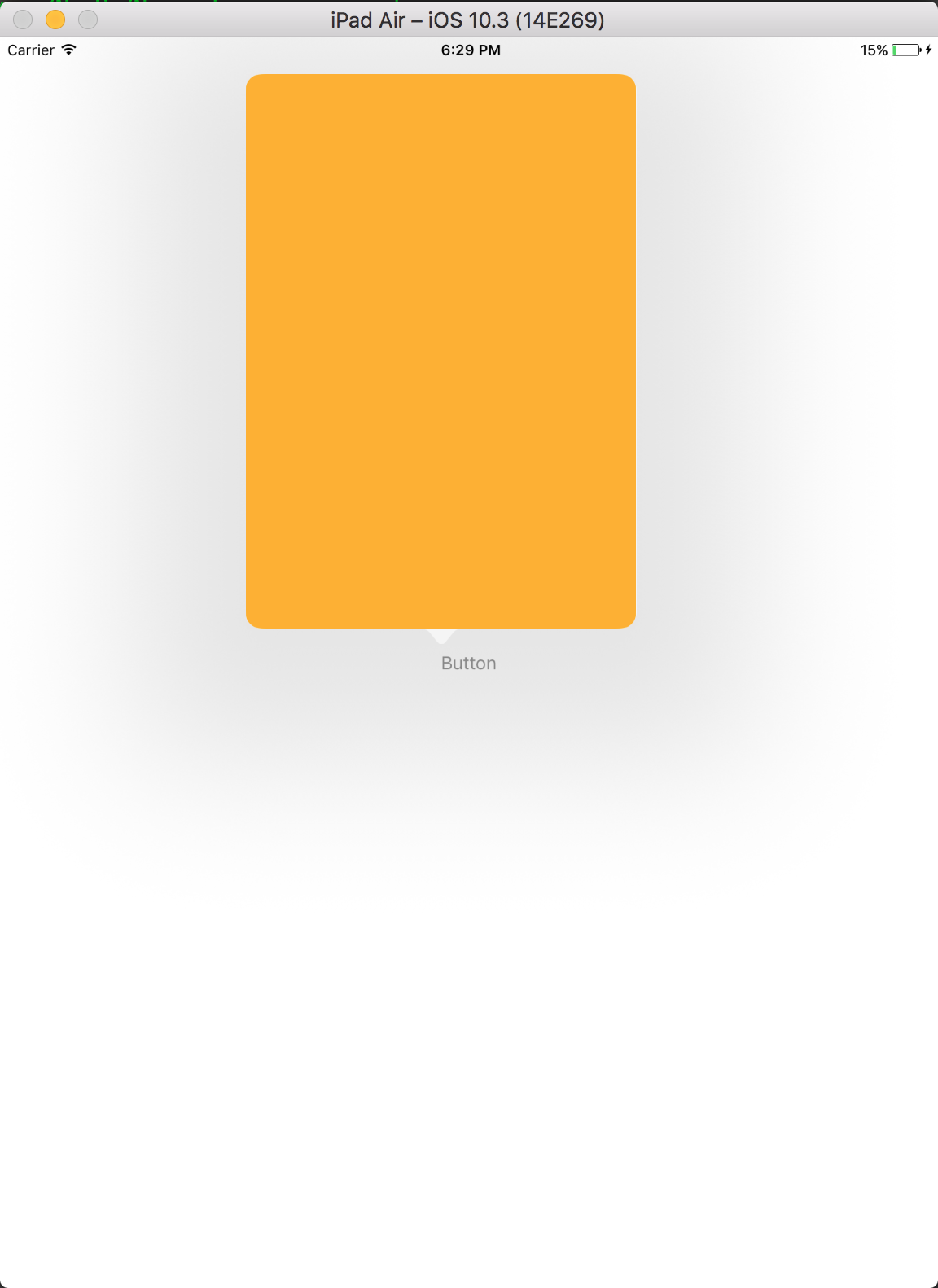
There are more than these basic modal presentation styles, but they are a little complicated to achieve and require some code. More details can be found in the Apple Documentation.