Label Attributed Text
suggest change1. Underline Text :- Single/Double Line , Strike Through :- Single/Double Line
Step 1
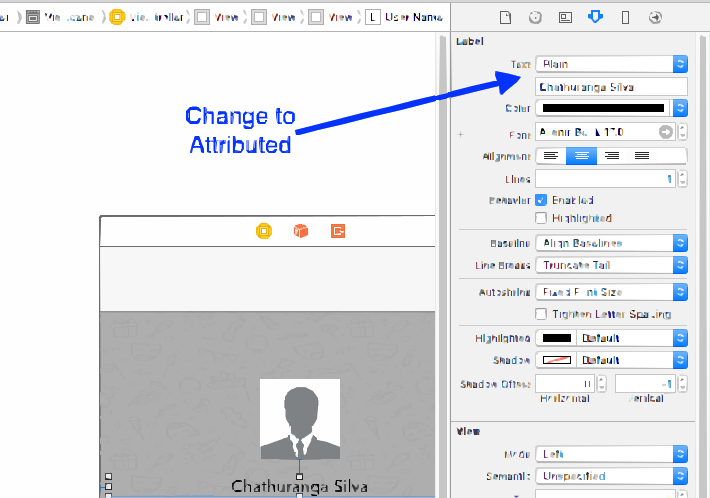
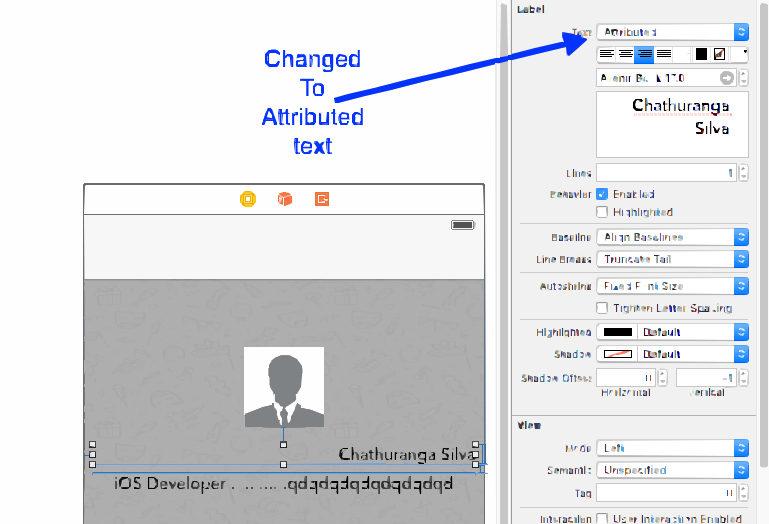
Select the Label and change the label type Plain to Attributed
Step 2
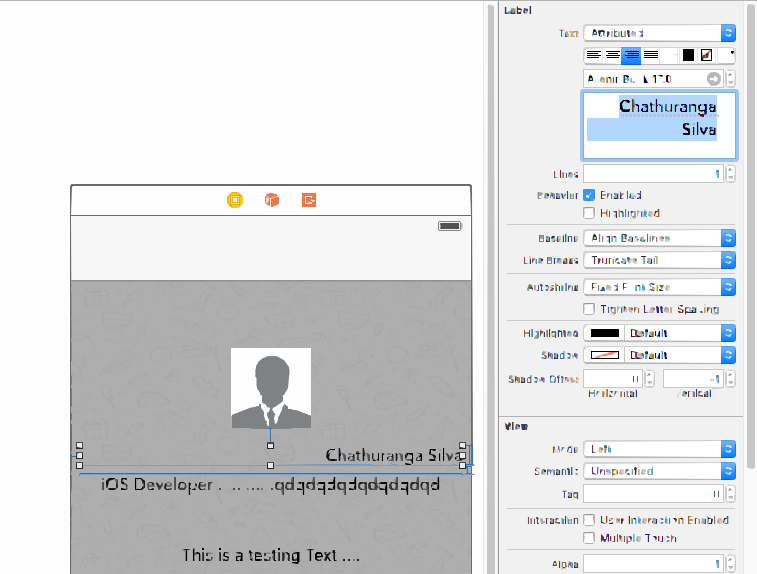
Click the label text and Right click
Step 3
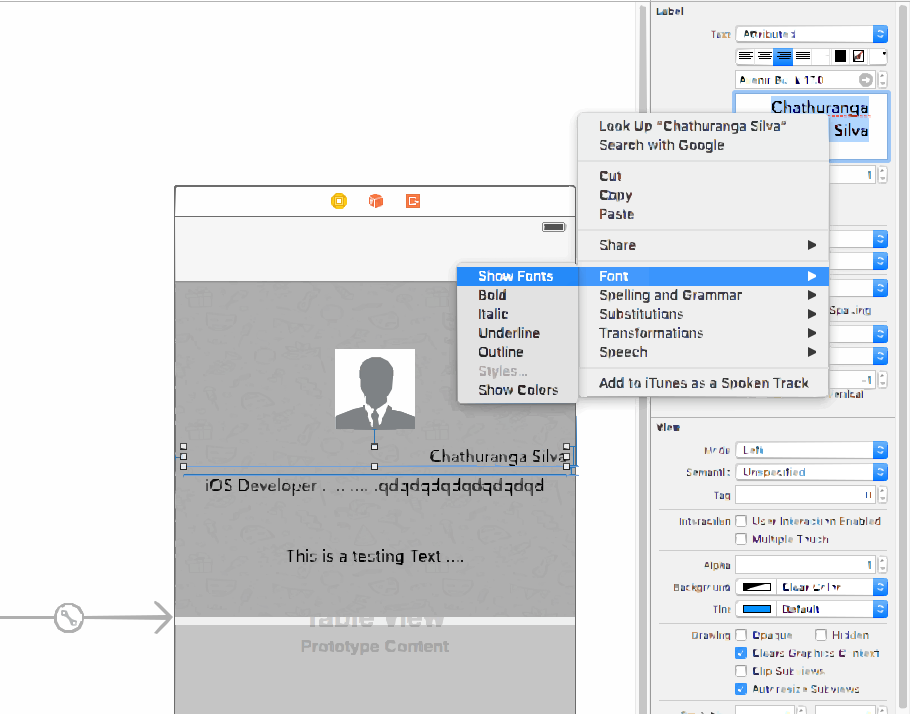
Then click Font -> Show Fonts
Step 4
Then font view will show up and click underline button to make text underline or click strikethrough button to make the text strikethrough. And select single line or double line.
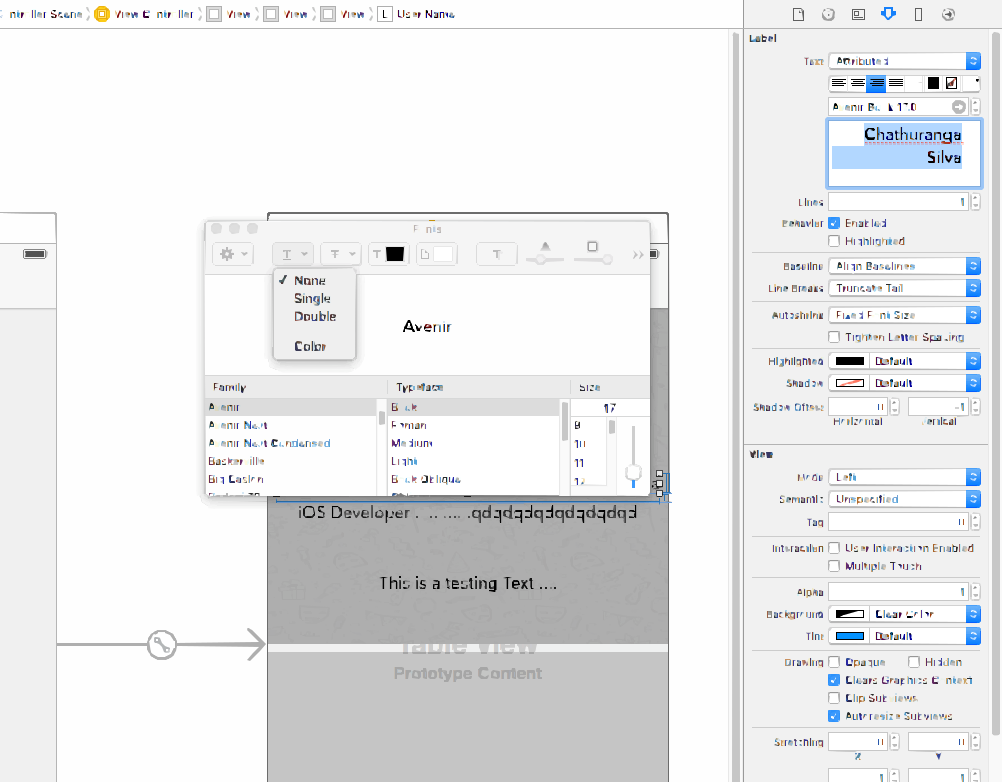
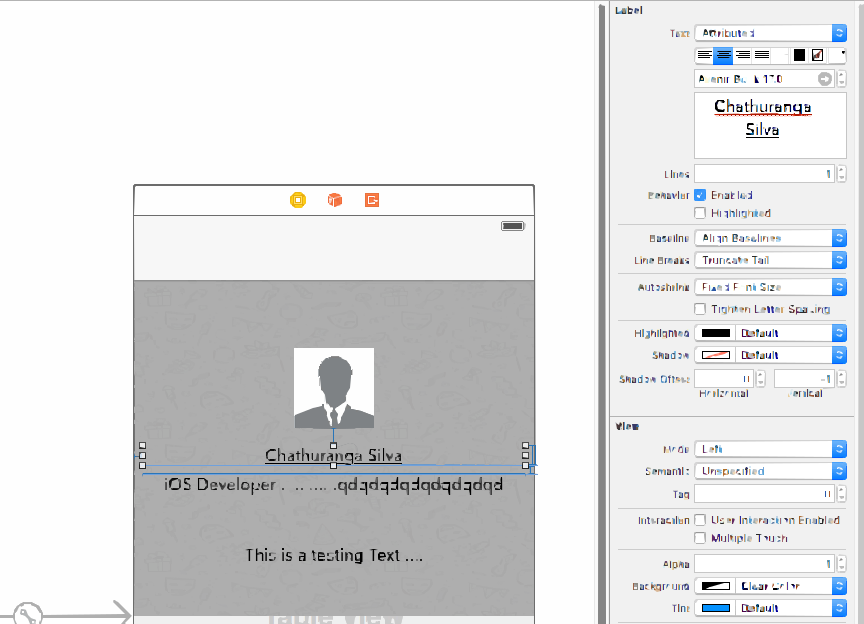
Finally press Return and the label will be shown underlined or struck through according to your selection.
2. Add text shadow/background blur effects
Get the Font view as the above described and click the effects button.
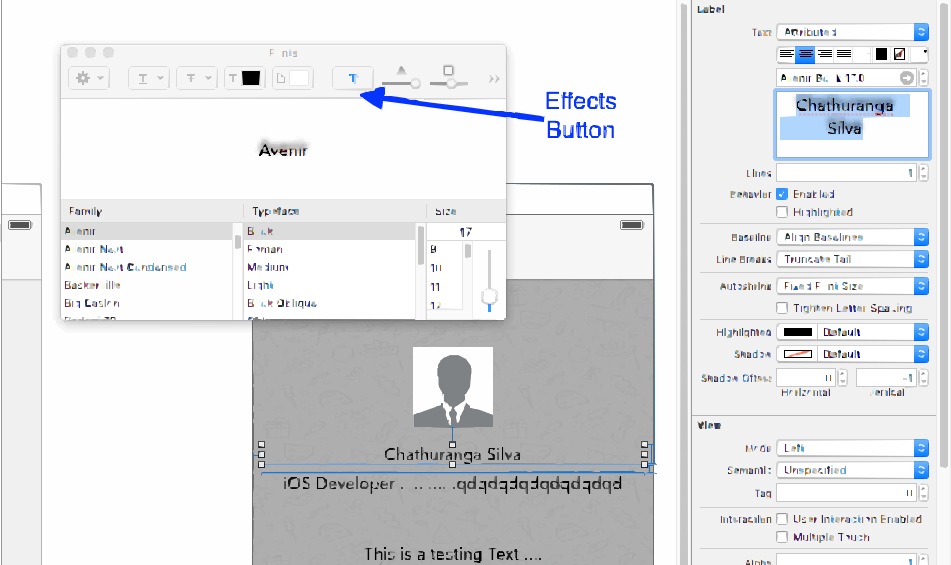
If you don’t see the preview, click the show image in settings.

Finally change the shadow and offset according to your preferences.
