UIScrollView dynamic content size through Storyboard
suggest changeWhile using scroll views in a storyboard, it’s better to calculate the content size according to the number of views in the scroll view rather than setting the content size programmatically to a static value.
Here are the steps to get content size dynamically.
Step 1 :
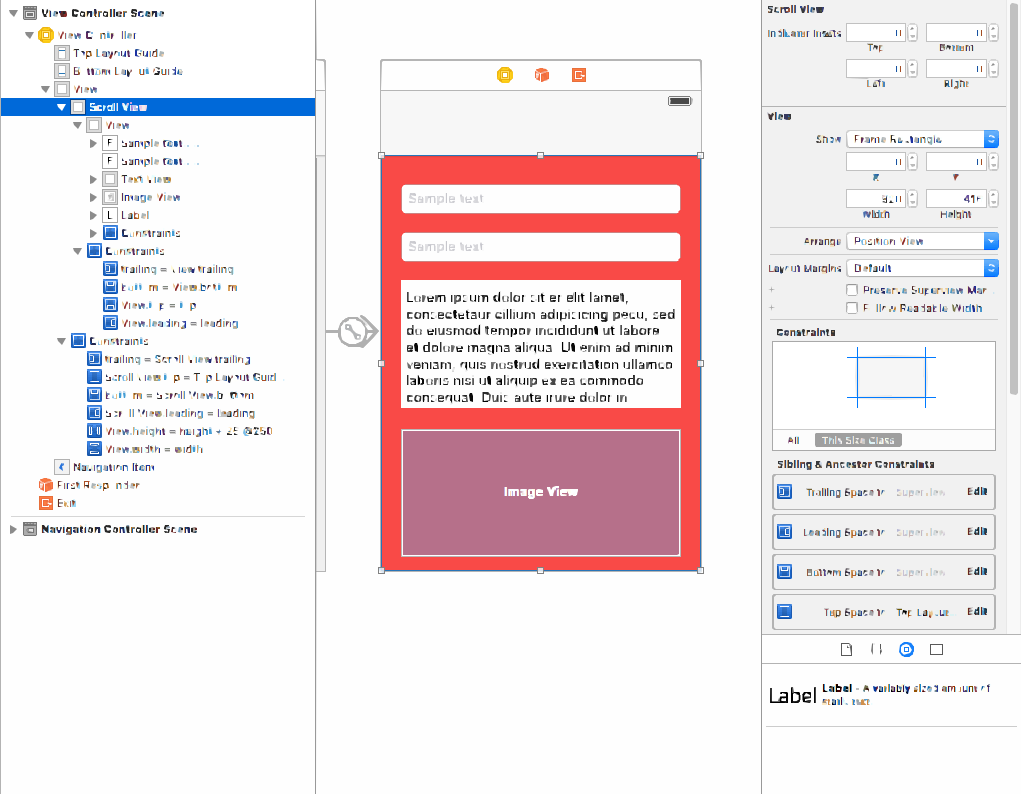
Add a scroll view to the view in the storyboard and add leading, trailing, top, and bottom constraints (all values are zero).
Step 2 :
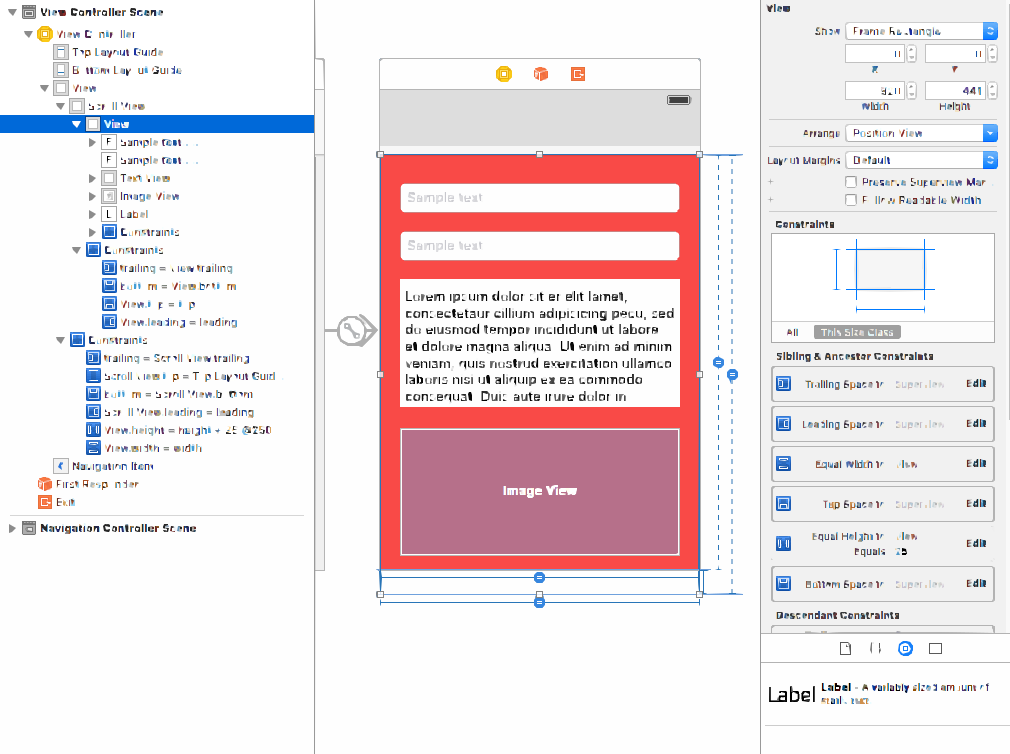
Don’t add the views you need directly to the scroll view. First add one view to the scroll view (that will be our content view for all UI elements). Add the constraints below to this view.
- Leading, trailing, top, and bottom constraints (all values are zero).
- Add equal-height and equal-width constraints to the main view (that is, the view which contains the scroll view). For the equal-height constraint, set the priority to low. (This is the important step for setting the content size.)
- The height of this content view comes from the views added to it. Pin the bottom of the last subview to the content view; otherwise the low-priority equal-height constraint wins and the scroll view does not grow. Let’s say the last view you added is a label, its Y position is 420, and its height is 20. The content view is then 440.
Step 3 : Add constraints to all of the views you added inside the content view, as your layout requires.
Found a mistake? Have a question or improvement idea?
Let me know.
Table Of Contents